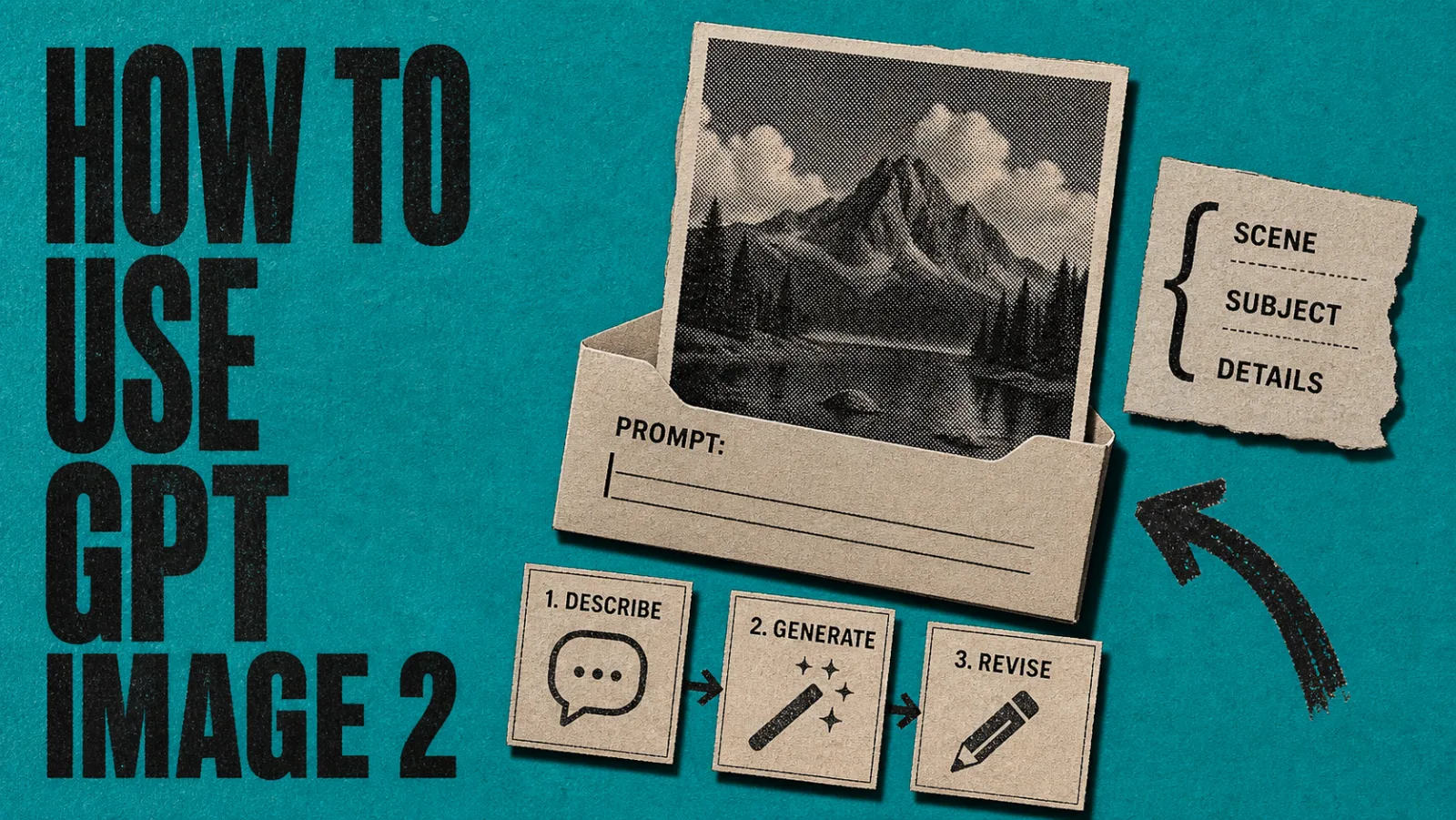
To use GPT Image 2, describe the scene, subject, and visual details, choose text-only generation or reference-guided editing, then inspect the result. Direct API masks can guide a local change, but they do not guarantee unchanged pixels elsewhere. ChatCut-hosted generation requires active Pro and ChatCut credits; starting credits alone do not establish access.
Codex’s built-in image tool is a separate route with host access and usage rules. Selecting a ChatCut model or falling back to ChatCut generation uses ChatCut’s plan and credit rules. See AI Image Generation before starting.
Workflow facts — last verified October 28, 2026
| Verified fact | Source |
|---|---|
Exact model. Request gpt-image-2 when that version matters. Newer Image 2.5 Flare and Sunburst models are separate choices | Image 2, Flare, Sunburst |
| ChatCut-hosted access. Active Pro and sufficient credits are required; Codex’s own tool has separate host usage rules | ChatCut image guide |
| Reference editing. ChatCut’s GPT route caps combined references at 10. Direct OpenAI docs list 16; the native boundary was not established in this audit | ChatCut contract check (2026-10-28); ChatCut image guide, edit API |
| Masked editing. A direct API mask guides the edit without guaranteeing exact boundaries or preservation elsewhere. ChatCut’s inspected image tool has no dedicated mask field | Image-generation guide; ChatCut tool-contract check (2026-10-28) |
| Output review. Text, composition, and recurring subjects can still vary. Inspect each generated asset against the brief | OpenAI image-generation limitations |
These are documentation and inspected-tool facts, rather than a matched quality test or a confirmation of every deployed account’s state.
What Is GPT Image 2 and How Does It Differ from GPT Image 1?
GPT Image 2 is an OpenAI image-generation and editing model. It is distinct from newer Image 2.5 models, and the current ChatGPT interface need not use Image 2 for every request. For a version-specific API task, name gpt-image-2 and check its model documentation.
Key Capabilities to Evaluate
| Task | What the workflow can request | What to review |
|---|---|---|
| Text in an image | Specify exact copy and placement | Spelling, numerals, small type, and line breaks |
| Product visuals | Describe lighting, materials, and camera position; attach references | Product shape, logos, labels, and invented details |
| Editing | Describe the change and what should remain fixed | The requested region and possible changes elsewhere |
| Composition | State subject, scene, hierarchy, and aspect ratio | Cropping, object count, and spatial relationships |
These are review criteria rather than scored comparisons with GPT Image 1. A clear prompt helps specify the target, but does not guarantee the model will satisfy it.
What Stayed the Same
The workflow still involves describing a target, generating, reviewing, and iterating. For masked API edits, select the region and describe the replacement, then compare the entire output with the source. In ChatCut, use natural-language and reference-guided editing; do not assume a mask-drawing control or influence-strength slider exists.
How to Write Prompts That Actually Work
Use a structured brief so the result is easier to evaluate. Name the setting, the main subject, and the lighting, camera, style, and output ratio. Change one part of the prompt at a time when iterating. This framework is practical guidance, without an established success percentage.
The Scene / Subject / Details Framework
A useful prompt can answer three questions:
- Scene — Where is this happening? What’s the environment or background?
- Subject — What is the main object, person, or element?
- Details — What are the lighting conditions, camera angle, style, and output ratio?
Use those details as a starting point, then compare the output with the brief. Here is a reusable template:
[environment/background], [subject description], [lighting direction and quality], [camera angle or lens style], [visual style], [aspect ratio]Before-and-After Rewrites
Prompt 1
Before: a professional product photo
After: a white ceramic coffee mug on a dark slate surface, soft side lighting from the left, shallow depth of field, commercial photography style, 4:3 ratio
Prompt 2
Before: a beautiful city at night
After: a rain-slicked downtown street at night, neon signs reflecting on wet pavement, low-angle perspective, cinematic color grading with teal and orange tones, 16:9 ratio
Prompt 3
Before: a person working at a desk
After: a woman typing on a laptop at a minimalist white desk, warm morning light from a window on the right, over-the-shoulder angle, documentary photography style, 3:2 ratio
The difference isn’t word count. It’s specificity about light, angle, and style.
What to Stop Doing Immediately
Three mistakes show up constantly in weak prompts:
- Over-praising. Words like “amazing,” “stunning,” and “beautiful” don’t describe visual properties. The model can’t render “stunning.” It can render “backlit” or “high contrast.”
- Skipping lighting and perspective. State the light direction and camera position when they matter to the composition.
- Forgetting ratio and style. A 1:1 square crop looks nothing like a 16:9 cinematic frame. Specify both the output ratio and a visual reference style (product photography, editorial, cinematic, illustration) in every prompt.
These details make revisions easier to describe. Further generations may still be needed.
Three Workflows: Text-to-Image, Image-to-Image, and Inpainting
The OpenAI image API supports text-only generation, reference-image edits, and mask-guided editing. Text-only generation starts from a prompt; reference editing starts from an existing image. A mask guides a region to change, but the output can also change outside the mask. Compare the complete image with the source before accepting the edit. ChatCut exposes text and reference workflows; its inspected image tool does not expose a dedicated mask field.
Text-to-Image: Generating from Scratch
This is the baseline workflow: you write a prompt, set your output ratio, and generate.
- Write a specific prompt using the scene/subject/details framework from the previous section.
- Set your aspect ratio before generating. For video thumbnails, use 16:9. For social posts, use 1:1.
- Generate, review, and iterate. Adjust one variable at a time so you know what changed.
Example prompt: “a glass perfume bottle on a white marble surface, overhead lighting, soft shadows, minimalist product photography, 16:9 ratio.”
Target: a studio-style product composition. Check product accuracy, edges, lighting, and text before using the result in a video or ad.
Image-to-Image: Transforming an Existing Asset
Upload a reference image and describe the transformation, including the details that should remain fixed.
- Upload your source image (a rough sketch, a screenshot, or a raw photo).
- Write a transformation prompt: “render this as a polished UI mockup with a dark mode interface and rounded card components.”
- Review the generated image against the source. If a detail drifted, name it explicitly in the next request; do not assume an influence-strength control is available.
For example, use a wireframe as a reference for a UI concept image. Label it as a concept rather than presenting generated interface details as a working product.
Inpainting: Editing Specific Regions
In a direct API workflow, inpainting uses a mask to guide changes to a region. It is best-effort editing, not a promise that only that region changes. ChatCut’s inspected image tool has no dedicated mask input.
- In a client that supports the API mask input, provide the source image and a compatible mask for the intended region.
- Describe the replacement: “replace the background with a blurred outdoor cafe scene, warm afternoon light.”
- Generate, then compare the entire output with the original, including areas outside the mask. Reject or revise it if unrelated details changed.
Use this to request a new product background, remove an object, or revise an element. Inspect edges, product identity, text, and the rest of the frame before accepting the result.
How Much Does GPT Image 2 Cost, and Can You Use It Free?
Direct gpt-image-2 API use is billed and has no free usage tier. ChatGPT image access has its own plan limits and currently describes Images 2.5. ChatCut-hosted image generation requires active Pro and ChatCut credits. Codex’s built-in image tool is separate, using the host’s image access when available.
API Pricing Breakdown
Use the current Image 2 model page and its pricing calculator for your exact request. Model, quality, output size, and reference inputs affect usage. This guide does not maintain a second per-image price table.
ChatGPT Access
ChatGPT’s current image guide lists availability across tiers. Check the model description and account limits rather than assuming a paid subscription guarantees a fixed Image 2 quota.
ChatCut Access and Codex Usage
ChatCut’s image models require active Pro and credits. Selecting a ChatCut model, explicitly requesting ChatCut generation, or falling back to ChatCut because of tool or reference handling uses that route, even when the conversation stays in Codex. Codex’s built-in image tool has separate host usage rules. Check the request confirmation and Credits History; a signup balance alone does not establish access.
Choose the route that fits the task:
- Custom application or direct mask-based editing: evaluate the OpenAI API and its billing.
- Conversational image generation: check ChatGPT’s current model and plan limits.
- A video project using ChatCut-hosted generation: check active Pro and sufficient ChatCut credits.
- Codex’s built-in image tool: check the host’s image access and confirm which route the actual request uses.
See AI Image Generation and Credits for ChatCut’s current rules.
How to Use GPT Image 2 Inside a Video Workflow
In ChatCut, a generated image becomes a project asset that you can review and place on the timeline. For ChatCut-hosted models, check active Pro and credits first. You do not need a separate OpenAI API key for that route.
Generate, Edit, Drop Into Timeline
Here’s the exact workflow:
- Open ChatCut, check Pro eligibility and credits for ChatCut-hosted generation, and start or load a project.
- In the AI chat panel on the left, type your image prompt. For example: “a close-up of a glass water bottle on a marble countertop, soft natural light from the right, minimal background, product photography style.” Request GPT Image 2 explicitly when that version matters, and review any generation confirmation and estimate.
- Drag the generated image from the media panel onto your timeline as B-roll, a title card, or a thumbnail layer.
Check the placed image’s crop, duration, and fit with the surrounding footage.
Use Cases: B-Roll, Thumbnails, Storyboards, Motion Graphics
Talking-head B-roll. If you’ve got a 90-second clip and your footage runs dry at 60 seconds, generate a relevant visual to cover the gap. Pair it with an AI voiceover to narrate over the generated image and keep your audience engaged. Ask for your video’s palette, then review whether the result fits the surrounding shots.
Product mockups for app promos. Describe a UI screenshot or packaging shot you don’t have. GPT Image 2 renders it. Drop it into your app promo sequence without a studio shoot.
Storyboard frames. Generate scene references before you film and use approved frames as a shared visual target.
Motion graphics assets. Generate a static graphic, then animate it using ChatCut’s AI motion graphics generator. You can also pair generated images with fully AI-produced clips using the AI video generator for sequences that don’t require real footage at all.
The no-API-key point matters most here. When you’re mid-edit, the last thing you want is to context-switch into a developer console.
What Are the Best Use Cases for GPT Image 2?
Candidate uses include product visuals, brand variations, UI concepts, thumbnails, storyboards, and illustrative B-roll. Treat each generated asset as a draft. This guide does not establish a success rate or production-quality guarantee for these tasks.
Product and E-commerce Visuals
Product visuals. Generate a concept composition from a brief or reference, then check whether it accurately represents the product before publication.
Example prompt: a white ceramic pour-over coffee dripper on a matte black surface, soft diffused lighting from the upper left, minimal shadows, commercial product photography style, 4:3 ratio
Brand asset variations. Instead of mocking up every merchandise option by hand, generate realistic placement visuals directly from a description.
Example prompt: a navy blue tote bag with a small white minimalist logo centered on the front panel, natural daylight, lifestyle product shot, clean background
UI Mockups and App Screenshots
UI mockups. Describe an interface and get a realistic-looking screenshot, useful for demo videos, pitch decks, or explainer intros before your app is built.
Example prompt: a clean iOS fitness tracking app dashboard showing weekly step count, heart rate graph, and sleep data, dark mode, modern sans-serif typography, flat UI style
This pairs well with the App Promo workflow inside ChatCut, where generated mockup frames can drop straight onto the timeline.
Creative Assets for Video and Social
Social media thumbnails. Request a background using your video’s palette and aspect ratio. Generation time varies. For a complete social media content workflow built around short-form video, generated visuals like these are a fast way to maintain a consistent look across posts.
Example prompt: a deep teal gradient background with soft bokeh light orbs, cinematic texture, 16:9 ratio, no text
Storyboard frames. Generate rough scene references before filming, then compare continuity and framing across the approved set.
Example prompt: a wide-angle shot of a person sitting at a minimalist desk facing a large monitor, warm afternoon light through a window to the right, cinematic color grade
B-roll for explainer videos. When your voiceover describes a concept that’s hard to film, generate an illustrative visual instead — and use AI captions to add text overlays directly on top of those generated visuals. If you want to go deeper on building a full AI image workflow for video, the AI image generator for video editing guide covers the end-to-end process.
Example prompt: an abstract visualization of data flowing through a network, glowing blue nodes connected by thin light trails, dark background, tech editorial style
Try It: Generate Your First Image in ChatCut
For ChatCut-hosted generation, first check active Pro and sufficient ChatCut credits. A starting allowance does not guarantee eligibility. If Codex uses its own built-in image tool, check the host’s image access; if it selects or falls back to ChatCut generation, ChatCut’s requirements apply.
- Open a new or existing project in ChatCut.
- Request the model and describe the scene, subject, lighting, and aspect ratio. For example: “Use GPT Image 2 for a close-up of a smartphone on a wooden desk, warm morning light, shallow depth of field, product photography style, 16:9.”
- Review any confirmation and credit estimate, then follow the generation progress.
- Inspect the finished image in My Assets. Check text, geometry, composition, and actual output dimensions before adding it to the timeline.
For the current route and billing rules, use AI Image Generation. For the editing workflow around the asset, see text-based AI video editing.