Use these Seedance 2.0 examples to study reference images, camera directions, materials, and sound. A focused continuous take is a useful technique, but the model also supports multiple ordered shots in one request. Choose the structure your scene needs, then review the generated result.
This gallery pairs fourteen prompt examples with existing videos from ChatCut’s Prompt Library. They illustrate particular outputs, not a guarantee that a new request will reproduce the same result.
Last verified: 2026-10-28. The capability facts below come from official documentation and the inspected ChatCut integration. Existing gallery media is preserved; no new generation or deployed-production test was performed for this update.
| Verified fact | Source |
|---|---|
| Full Seedance 2.0. 4–15-second output; six fixed aspect ratios plus adaptive; first/last-frame and multimodal-reference modes | BytePlus API |
| Multi-shot prompting. Official 2.0 examples include fast cuts and ordered shots within a request; a single take is a technique, not a model-only limit | Seedance 2.0 guide |
| Full 2.0 resolution. Official output includes 4K. ChatCut currently offers up to 1080p because 4K pricing is not wired; configured-endpoint 4K acceptance remains unverified after connection timeouts | BytePlus API; ChatCut route review, model matrix |
| Reference inputs. Up to nine images, three videos, and three audios within combined request limits; audio needs an image/video reference. Do not mix frame and reference modes | BytePlus API |
| Shot timing. Use ordered shots for 2.0; exact timestamp following is not guaranteed. 2.5 documents timestamp following separately | Official prompt guide |
What “production-grade” means for a Seedance 2.0 prompt
The three checks again, with more teeth.
Choose the shot structure deliberately. A continuous take with one camera move gives you fewer transitions to review. Seedance 2.0 can also generate multiple shots in one request: describe Shot 1, Shot 2, and so on, within the 4–15-second duration. Inspect the resulting cut order and continuity instead of treating exact timing or shot count as guaranteed. Official full 2.0 output includes 4K; ChatCut’s current generation cap is 1080p for the pricing reason in the dated table above.
Named nouns over vibes adjectives. “Cinematic,” “ethereal,” “premium,” these words anchor on the model’s average training data. “Volumetric overhead beam lighting,” “ray-traced reflections on polished floor,” “razor sharp edge with grazing rim light,” these anchor on specific images in the dataset. The first style of prompt produces a Seedance 2.0 video that looks the way every other Seedance 2.0 video looks. The second style produces a specific one.
Reusable as-is. If the output needs frame-by-frame retouching, fingers fixed, identity stitched, the prompt didn’t work. It might be a beautiful clip; it isn’t a production asset. The existing videos below show particular outputs. For your own project, watch the full result and check details, sound, and continuity before approving it as a final asset.
If you want the formula side of this, the structural breakdown of multimodal slots, timeline syntax, and audio direction, read our Seedance 2.0 prompt formula guide afterward. This article is the gallery side: the prompts and the videos they produced.
14 Seedance 2.0 prompt examples with videos
The order is curatorial, not chronological. Logo work first because it’s the safest starting point. Product and commercial second because that’s where most readers arrive from. Character-driven third, where the model’s documented weaknesses bite hardest and the prompts have to defend against them. Structural and effects work last, where Seedance 2.0 does things earlier video models couldn’t.
Every prompt below shows the verbatim text from the live preset. Where you see @image:Name, that’s a reference image slot. You upload an image and the model uses it as a visual anchor for that subject. Where you see {{field:hint}}, that’s a text field the system asks you to fill in.
1. Cinematic Logo Animation
The visible prompt is short on purpose. What earns the result is everything you don’t see: the system-level instructions the preset wraps around the user’s logo, which specify the lighting language. Volumetric overhead beam, ray-traced floor reflection, grazing rim light, razor-sharp edge clarity. The trick to read in this one is that nothing in the prompt describes the logo. Logos animate themselves when you give them light. Describing the shape adds noise to a model that already knows what a logo looks like.
A logo reveal is a focused place to start. Check the logo shape, edges, and lettering throughout the clip; keeping people out of the shot does not guarantee detail preservation.
2. Liquid Logo Animation
The change from prompt #1 to this one is a single word: liquid-particle. That’s the entire difference. Same logo input, same duration, same aspect ratio, and Seedance 2.0 lands a different result because the material name is a different region of its training data.
“Liquid” works specifically. Seedance 2.0 has a well-documented strength in fluid simulation; water, mercury, oil, and gel-like substrates produce clean physics. “Magical” or “ethereal” wouldn’t produce this. They map to a much fuzzier training cluster. The lesson generalizes. When you want a stylized reveal, pick a substrate name first, a noun that has physics, and let the model handle motion from there.
3. Glitch Logo Animation
Glitch is the camera move you don’t write. The user prompt names the effect, RGB-glitch reveal, and the system instructions name the artifact vocabulary: chromatic aberration, RGB channel split, horizontal scanline displacement, datamosh frame interpolation. What’s missing from the prompt is any camera direction at all. That’s deliberate. When the effect is the subject, you let the model invent the camera; if you tell it to dolly and orbit while it’s also trying to glitch, it splits attention and lands neither.
Read this one as a counterweight to prompts 1 and 2. Cinematic uses cinematography vocabulary because the effect is light; this one uses artifact vocabulary because the effect is data corruption. Use the noun family the effect lives inside. Don’t borrow vocabulary from the wrong domain.
4. Product Launch Ad
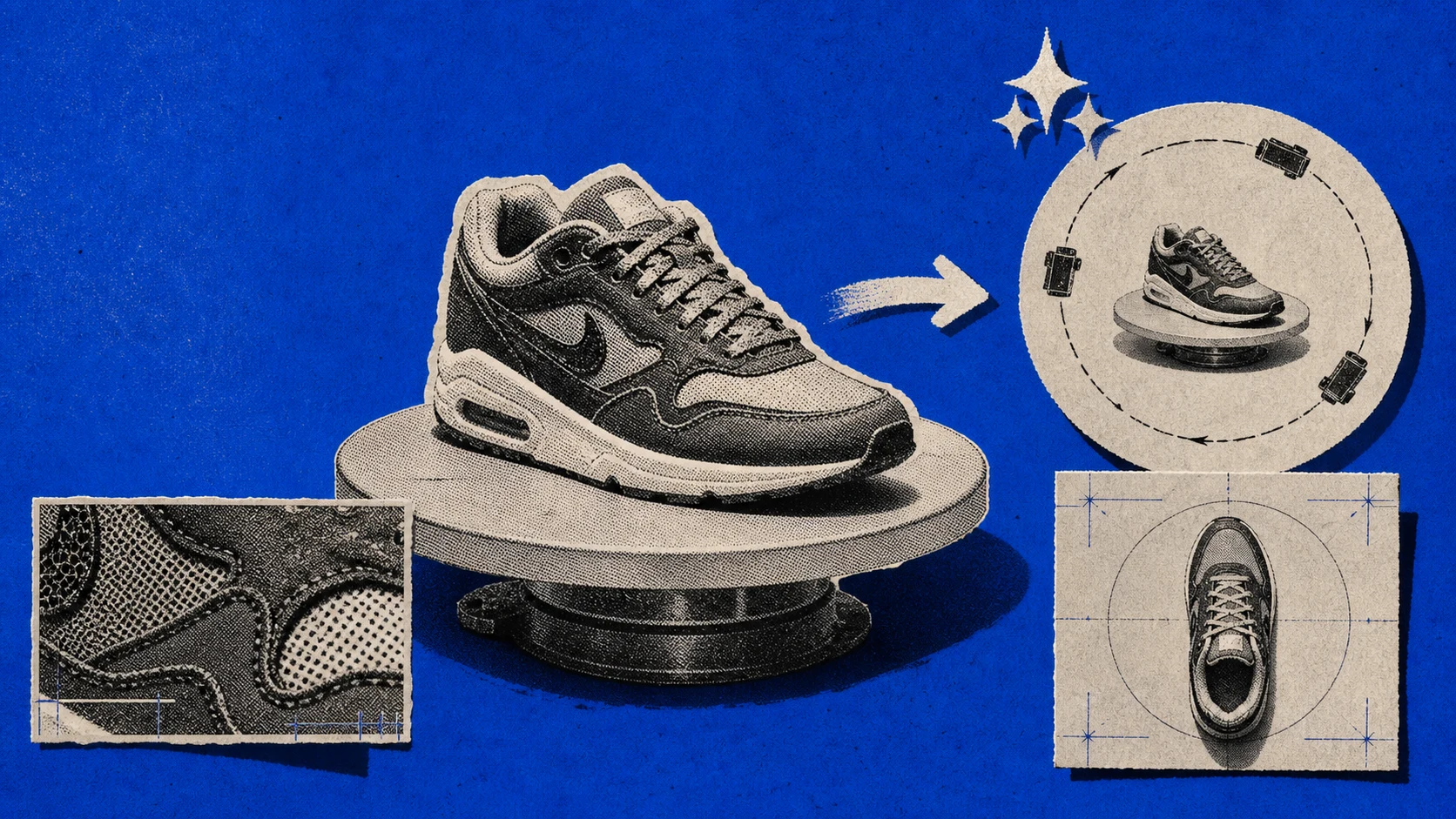
This preset describes several named camera positions. The system instructions describe several positions: extreme macro with grazing light, ultra-smooth dolly push from mid-shot to three-quarter, high-speed 360-degree orbital around the product, low-angle power shot from floor level, lateral tracking sweep across the full profile, top-down overhead descent into a bird’s-eye frame, and a final pullback to a wide centered hero.
Use concrete directions such as macro, dolly push, orbital, low angle, lateral tracking, and bird’s-eye. Naming the intended order makes the brief clearer; review whether the actual output follows it.
If you’re working on product ads, this is the template to copy first. The visible user prompt is one line; the heavy lifting sits in the system layer the preset ships around your one-line input.
5. Premium Hair Care Ad
This is the inverse of the Product Launch Ad camera grammar. When the product itself moves, a shampoo pour, a fragrance mist, a serum drip, you lock the camera and give the verbs to the product. The system prompt here calls for a slow tilt and a held wide; that’s intentional restraint, not laziness.
The lesson reads cleanly. Not every product prompt needs six camera positions. If the substance is doing the visual work, the camera should be the audience watching the substance. Sneakers don’t move; the camera must. Shampoo moves; the camera must not. Pick a side per product.
6. ASMR Product Video
This is the prompt where Seedance 2.0’s audio generation pulls its weight. The model produces synchronized SFX with the video: peel, snap, crinkle, the precise consonants of a wrap being opened. ByteDance’s launch notes describe this as unified multimodal audio-video generation, and this example asks for sound and picture together. The audio doesn’t come from a separate stem you composite in. It arrives baked into the file.
The vocabulary that earns the result is foley vocabulary, not cinematography vocabulary. Peel, snap, crinkle, micro-tap, soft impact, paper friction, plastic wrinkle. If you write a Seedance 2.0 audio-led prompt in cinematography nouns, you’ll get a quiet handsome video. If you write it in foley nouns, you’ll get a sound-design clip with picture attached. That’s the right way around for ASMR.
7. My Product is in Times Square!
The composite-prompt pattern lives or dies on venue specificity. “On a screen” produces a Seedance 2.0 video of a screen with nothing behind it. “On a Times Square billboard” produces Times Square, with screens. The model has the venue in its training data. The screens come for free when the venue is named precisely.
Other venues that work the same way: a side-of-building projection in Tokyo, a baseball stadium jumbotron, a Las Vegas Sphere wrap, a subway-platform digital ad screen. Name the intended setting clearly and inspect the output; this gallery does not establish a measured advantage for named venues or predict moderation outcomes.
8. Transformer is Here!
Describe the two endpoints and the transformation between them. This example asks for a car to become a mechanical creature. Use assets and subjects you have permission to use, and follow the provider’s reference and content rules.
Fifteen seconds is the upper end of full Seedance 2.0’s base-generation range, not a measured minimum for every morph. Give the transformation enough screen time for your scene, then inspect the intermediate geometry and product shape.
9. My Character in a Hero Scene
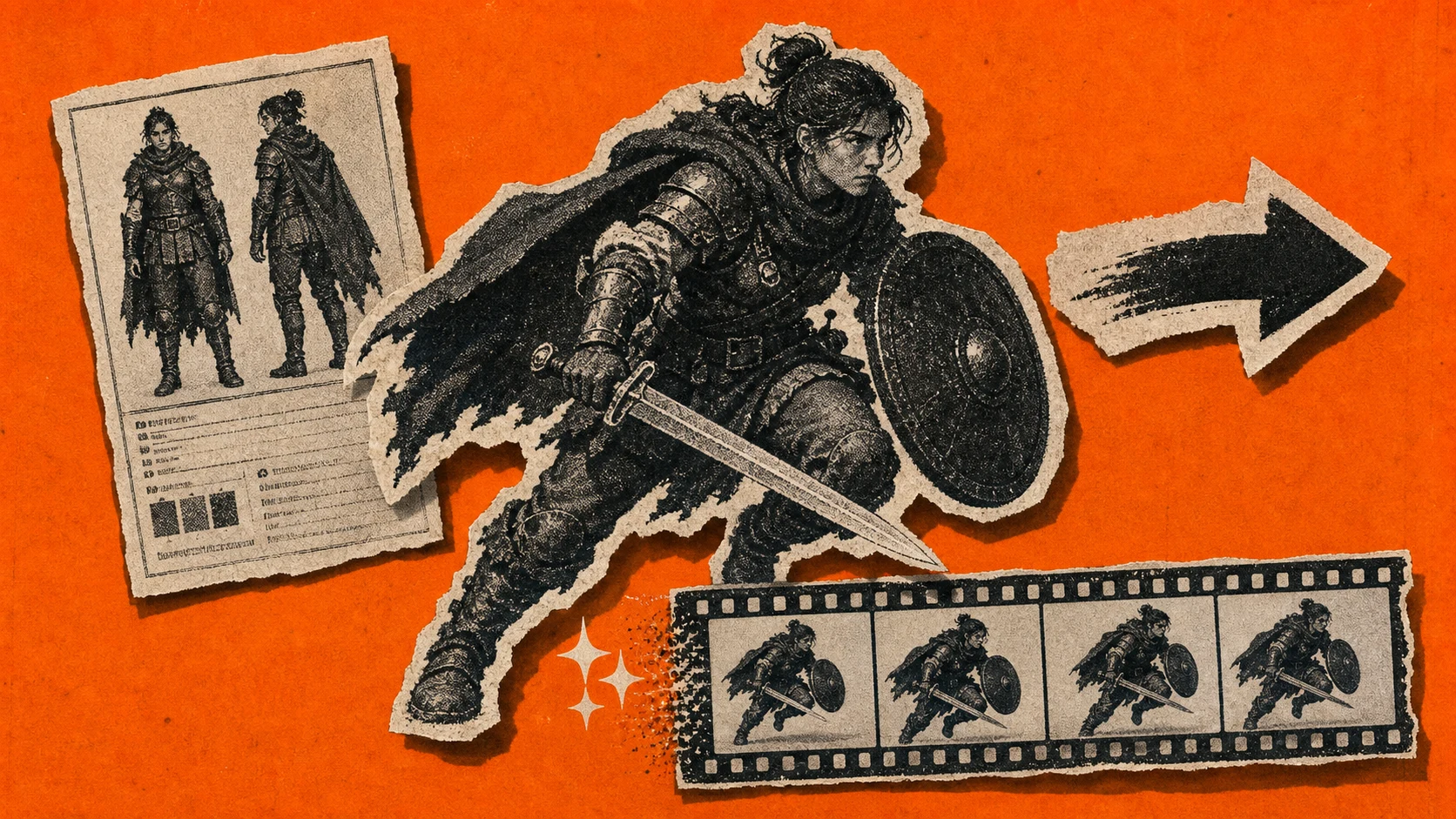
This example narrows the brief to one character, one shot, and one action. That reduces the number of cuts to review, but identity and anatomy can still drift within a continuous take. Use an approved reference and check the whole clip.
The placeholders request a character description and advise against uploading real-person photos for this preset. Reference eligibility depends on the provider’s current rules and asset route; ordinary face-bearing uploads, authorized portrait assets, and eligible trusted outputs are not interchangeable. Do not treat a stylized character as a guarantee of consistency.
10. Comic to Live-Action Film
Style transfer prompts work when the source style is uploaded, not described. Words like “cel-shaded,” “noir comic-book,” “Sin City contrast” anchor on rough averages in the training data. A single uploaded comic panel anchors on itself. The model reads the line weight, color palette, contrast curve, and panel composition directly off the pixels.
This generalizes to any aesthetic you can’t name precisely. If you can describe it in one word and the word is widely-used (cinematic, watercolor, anime), prose works. If the aesthetic has a particular author or a particular subgenre, Mike Mignola’s blacks, ’70s giallo color, ’90s anime grain, give up on prose and upload a frame.
If you’re building AI filmmaking workflows, this preset is a load-bearing one. Reusable visual references can reduce how often you need to describe the style again; inspect whether each new shot preserves it.
11. Cat & Dog Podcast Skit
This example uses two stylized animals for a short dialogue scene. Check each character’s appearance and mouth motion throughout; stylization does not remove the need to review identity and continuity.
The two-line dialogue slot is also doing structural work. By naming Luna and Buddy and giving each a single sentence, the prompt tells the model where the dialogue beats sit in the 15 seconds. Review mouth motion against the generated speech; this example does not establish a lip-sync advantage over photoreal subjects.
12. Storyboard to Film
This preset uploads a nine-panel storyboard sheet as one reference image and asks Seedance 2.0 to follow the panels in order. It is one way to guide several shots, not the only way: the official guide also uses text to request cuts and shot sequences within a single generation.
It honors the order when the panels are visually distinct. If panels 4 and 5 are too similar (same room, same character pose, same lighting), the model averages them and you lose one beat. The fix is on the storyboard side. Make each panel a different shot: wide, then medium, then close, then reaction, then cut to environment, then return. The model has a clear delta to follow.
Use it to evaluate a storyboard-led workflow, and compare the output with the intended panel order. The example does not establish a fixed shot-count or capability ceiling.
13. 3 Frames → One-Shot

Upload three images as references for a requested start, middle, and end. This is reference-guided prompting, not a dedicated three-keyframe timing control or proof that every supplied frame will appear exactly. The “no cuts, no crossfades” constraint at the end of the prompt is load-bearing. Without it, the model occasionally inserts a soft transition between frames and breaks the one-shot illusion.
The three frames work best when they imply a single physical action. Person walking toward a doorway, opening the door, stepping through, all from the same camera angle. The interpolation has somewhere to go. Three frames that imply separate actions, like person at desk, then person in car, then person on beach, produce surreal teleport sequences; that can be intentional, but it isn’t what this preset is tuned for.
14. Time Freeze Effect
Time freeze is a recognized cinematography term, and the model has training data for it. The prompts that work say “time freeze”; the prompts that fail describe the result (“subjects pause while the camera continues to move”). The model treats the named term as a single concept and inherits the bullet-time grammar that comes with it: frozen environment, orbital camera, zero motion blur on background subjects, light interaction held in place.
The system instructions for this preset get specific: absolute stasis (not slow motion), zero motion blur on the environment, environmental physics paused (water droplets held in mid-air, debris suspended). These constraints matter because “time freeze” without them slides into “slow motion,” a different shot that doesn’t produce the same visceral effect. If your output looks like slow-mo instead of bullet-time, your prompt is missing the zero motion blur constraint.
Patterns to reuse from the examples
Match the structure to the scene. Some examples request a continuous take; product and storyboard examples can call for several shots. Seedance 2.0 supports both. Use ordered shot descriptions when cuts matter, and check their order and continuity after generation.
Name the camera and action early. Put the intended shot type, movement, subject, and lighting where a reader can understand the brief quickly. That is a writing recommendation, not a measured model-attention rule.
Use concrete visual language. Macro, dolly, orbital, tracking, low angle, and top-down describe different camera intentions. Specify the one your shot needs rather than stacking several incompatible movements.
Use references deliberately. A reference can guide subject, style, or composition. Select the right input role and stay within the model’s count and combination limits; visual preservation still needs review.
State the constraints that matter. If you need no cuts, no added text, or a stable product shape, say so and check the full result. A constraint is a request, not a preservation guarantee.
Seedance 2.0 facts that change how you write prompts in 2026
Full Seedance 2.0 generates 4–15-second clips and accepts text, images, video, and audio through its documented input modes. It supports six fixed aspect ratios—16:9, 9:16, 4:3, 3:4, 21:9, and 1:1—plus adaptive where the mode permits it. Reference mode allows up to nine images, three videos, and three audio clips within the combined request limits; audio references need an image or video reference.
Official full-model output includes 480p, 720p, 1080p, and 4K. ChatCut currently offers up to 1080p because its 4K pricing route is not wired. The configured endpoint’s 4K acceptance remains unverified after connection timeouts; this is not evidence that the model cannot output 4K. Fast and Mini separately support 480p/720p. Generation resolution, any upscaling, and final editor export are separate facts.
The provider enables synchronized audio by default and documents an audio-off control; the inspected ChatCut route keeps audio enabled. Multi-shot content still has to fit the total clip duration. For longer sequences, assemble approved clips or use a supported edit/extension workflow with its own input limits.
For Seedance 2.0, describe ordered shots rather than promising exact second-level timing. Seedance 2.5’s timestamp-following guidance is a separate model fact. Moderation, asset eligibility, request limits, and reference availability can cause failures; inspect the actual task error instead of assuming a particular word or subject caused it. See the dated source table above.
How to actually run these prompts in 2026
Choose an available provider route and check its current input roles and limits. The short prompt shown in a gallery card may rely on preset instructions covering camera, lighting, constraints, and reference routing. Copying the line into another wrapper does not reproduce all of that context.
In ChatCut, use the Prompt Library to inspect an existing preset, add your own eligible reference, and review the model settings and estimate before submitting. Alternatively, write the full brief yourself through an available AI video generation route. Check the model matrix for current options.
You can generate or import a still first, approve its composition, then use it as the video reference. Place the approved clip in the project and review it against the rest of the edit. Use credits policy and the current estimate rather than treating the old flat three-credit example as a universal price. Access to editing tools does not establish that a particular generation is free.