Free image generation is available in ChatGPT, but that does not guarantee access to a specific GPT Image version or a fixed daily allowance. As of October 28, 2026, ChatGPT’s public guide describes Images 2.5. Direct gpt-image-2 API use is billed, and ChatCut-hosted image generation requires active Pro and ChatCut credits. A starting credit balance alone does not establish access.
If you use Codex inside ChatCut, Codex’s built-in image tool is a separate route governed by the host’s access and usage allowance. A request that selects or falls back to a ChatCut model uses ChatCut’s plan and credits rules.
Access facts — last verified October 28, 2026
| Verified fact | Source |
|---|---|
| ChatGPT. Image generation is available on all tiers; the current guide describes Images 2.5, not a guaranteed GPT Image 2 selector or fixed free count | Images in ChatGPT |
Direct OpenAI API. gpt-image-2 remains a named API model; its API free usage tier is not supported | GPT Image 2 model |
| ChatCut-hosted image models. Active Pro and sufficient ChatCut credits are required; current instructions feature Image 2.5 Flare and Sunburst | AI Image Generation |
| Codex’s built-in image tool. Uses Codex’s own image access when available; selecting or falling back to ChatCut generation changes the billing route | ChatCut credits and Codex usage |
| ChatCut video export. Desktop local export offers up to 4K; compatible browsers can offer 4K; cloud video is 1080p or lower. Export resolution does not establish image-generation resolution | Web vs Desktop Export, Desktop Local Export and 4K |
These are documented access and output rules. This update does not establish the state of every deployed account or guarantee that a generation will complete.
What GPT Image 2 actually is
GPT Image 2 is OpenAI’s gpt-image-2 generation and editing model. It remains distinct from the newer Image 2.5 Flare and Sunburst models. A host product can change its default model without changing an older article or saved prompt.
References and detailed prompts can guide composition, typography, product appearance, and style. They do not guarantee correct text or an unchanged subject. Review the generated asset before using it in a public video or advertisement.
Where to check free image access
1. ChatGPT free plan
OpenAI’s current ChatGPT image guide lists image generation on all tiers. It does not establish a universal two- or three-image daily quota. Read the limit and reset message shown in your account, and check the current product description if the exact model matters.
To try it:
- Sign in to ChatGPT.
- Ask for an image with a subject, setting, style, and intended aspect ratio.
- Review the output, then save the version you want.
- If you reach a limit, follow the account’s reset guidance.
2. ChatGPT paid access
Paid plans have their own access and limits. Images with thinking is a host workflow rather than a direct Image API parameter. Check the current availability guide before upgrading; this article does not promise a fixed number of images per subscription period.
3. Microsoft Copilot / Bing Image Creator
Bing Image Creator is another image-generation service. Its current page includes Microsoft’s own model offering, so a free Bing image should not automatically be counted as a free GPT Image 2 image. Check the displayed model and allowance rather than relying on an old list of boosts or queue speeds.
4. Third-party API aggregators
An aggregator’s free allowance is its own offer. It does not turn OpenAI’s direct API into a free tier or prove which underlying model completed a request. Before using one, check its named model, limits, data terms, output rights, and billing conditions.
5. Using more than one free service
Separate services can have separate allowances, but adding advertised limits does not establish a reliable daily total for GPT Image 2. Different models can also produce different styles. For a coherent project, keep the selected model and references consistent, then review each result.
Does GPT Image 2 watermark your image?
OpenAI describes Content Credentials and SynthID for supported generated images in its provenance guide. Coverage and persistence depend on the product and processing path. A screenshot or file conversion may remove metadata; a watermark is not a guarantee of accuracy or ownership.
For commercial work, review the provider’s current terms, the rights to your inputs, and third-party rights in the result. ChatCut does not promise that provenance metadata will survive every asset and video-export path. This article does not establish a legal disclosure requirement for a particular jurisdiction or use case.
ChatCut: image generation inside the editor
ChatCut can keep generated artwork in the project where you will edit it. That workflow is useful when the result becomes a still, title card, storyboard frame, or image-to-video reference.
Plan and credits requirements
ChatCut-hosted AI image generation requires active Pro and sufficient credits. A registration offer or starting balance alone does not establish eligibility. Codex’s own image tool uses its host access when available; verify the actual route before approving a generation.
Generation and built-in Agent requests use credits. Export does not spend ChatCut credits, although plan permissions, formats, quotas, and device compatibility still apply. Desktop local video export offers up to 4K, and compatible browsers can also offer 4K; cloud video is 1080p or lower. See Credits, Web vs Desktop Export, and Desktop Local Export and 4K. These export settings do not increase a generated image’s native resolution.
To generate inside ChatCut:
- Open a project and check your plan and credit balance.
- Describe the image in the Agent conversation and name the model when a particular version matters.
- Attach relevant references, then review any confirmation and credit estimate.
- Review the finished image in My Assets before dragging it onto the timeline.
Build a video workflow from the image
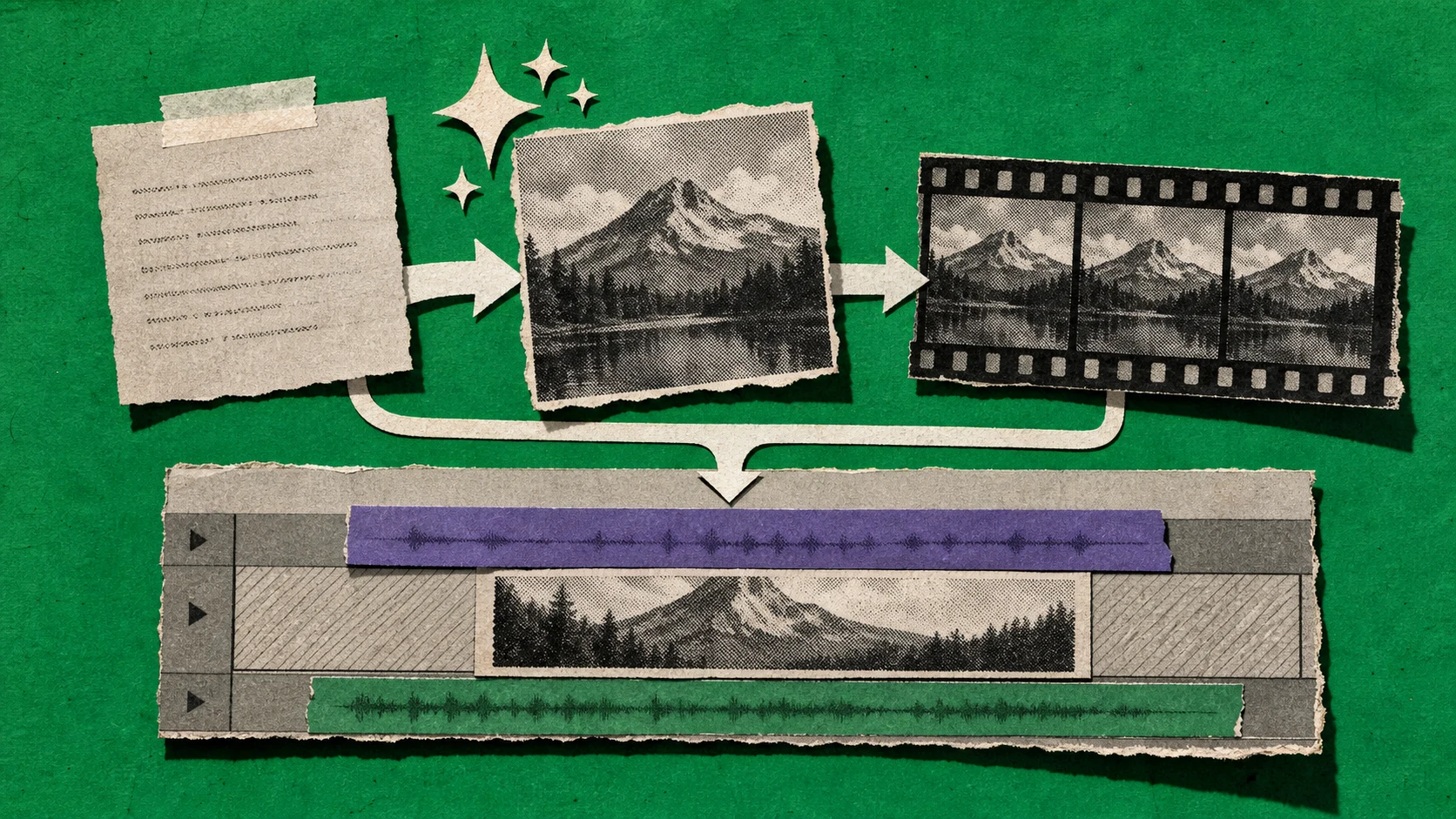
A workflow to try, subject to the selected tools’ access and credit requirements:
- Generate a reference frame with a defined composition, subject, palette, and aspect ratio.
- Place the approved image on the timeline and add motion graphics when useful.
- Assemble it with your source footage and transcript-based edits.
- If you need motion, use it as a reference for an available image-to-video model, then review that separate generation.
The same project can also use voiceover, captions, and source-audio cleanup. Check each tool’s current requirements rather than assuming an image allowance covers the entire chain.
When to consider a paid plan
Consider a paid plan when its documented access and limits match the work you need. For ChatCut-hosted image generation, Pro is an eligibility requirement even before you use the first credit. Review Free and Pro and the current credits policy before budgeting a project.
For prompt examples and workflow selection, continue to How to Use GPT Image 2.